
Start with the symptom, not a guess about the cause
A homeowner says they reviewed your plumbing repair, but the office cannot find it. An HVAC branch notices its review count has fallen. A roofing company merges duplicate profiles and the total looks wrong. These are different problems, and treating all of them as “Google deleted our reviews” can lead to the wrong response.
If Google reviews are not showing up, first identify the exact business profile, the affected review or count, and when the change was observed. Then check the reviewer’s contribution, recent profile changes, and any Google notice. Preserve evidence and use the support route that matches the issue. Neither your review software nor your agency can guarantee that Google will publish or restore a review.
This guide is for home-service owners, office teams, and marketers who need a calm troubleshooting process. If your underlying request process is still being built, use the home-service Google review guide alongside it.
Separate four common reports
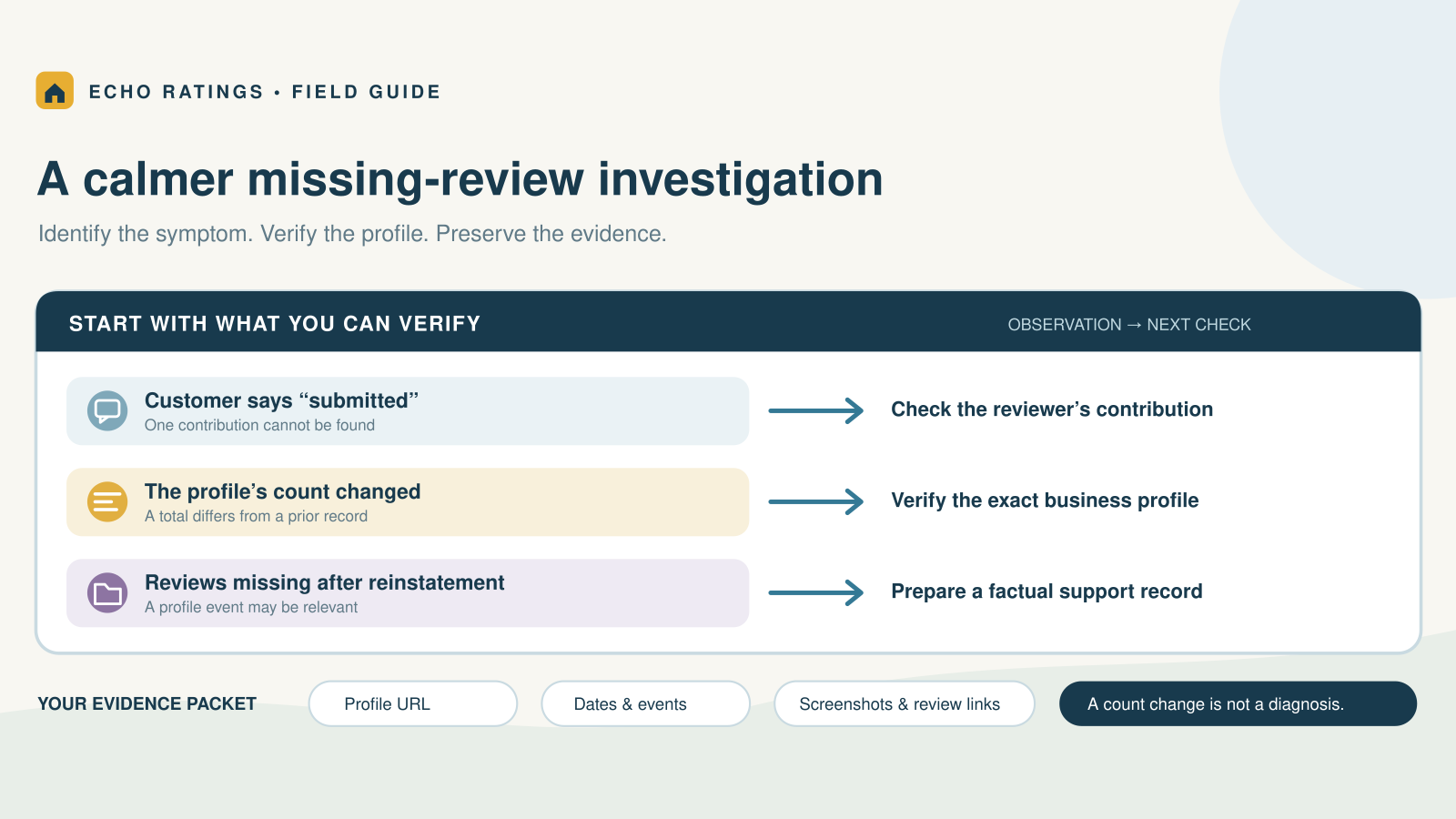
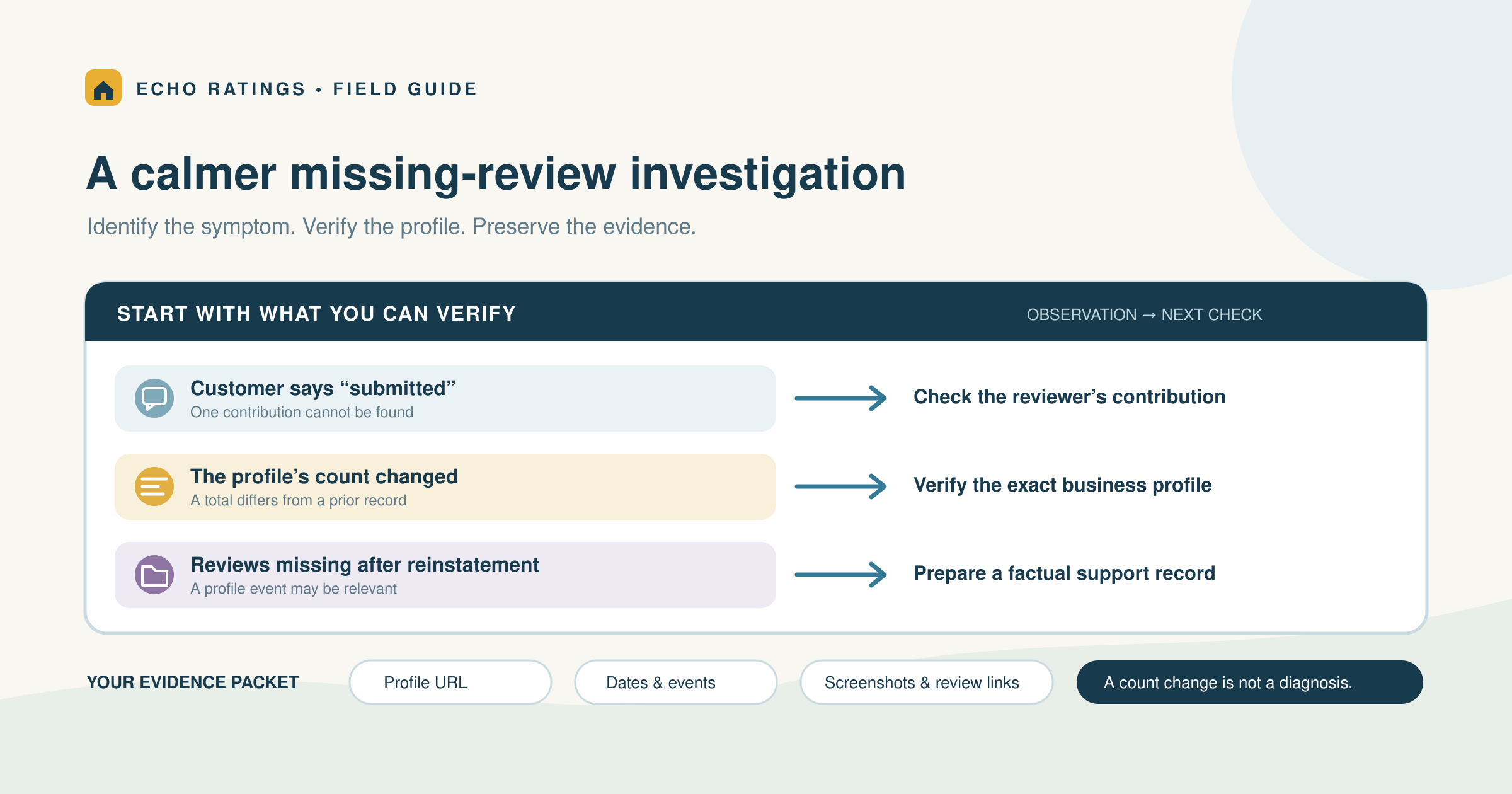
A customer says they submitted a review
Ask whether they can find the contribution in their own Google Maps account. If they are willing, ask for its share link or a screenshot showing the business name and submission date. You do not need access to their account, password, or phone. Google’s reviewer instructions explain how customers can find, share, edit, or delete their own reviews.
A previously visible review is gone
Record when it was last seen and whether you have a notification, screenshot, or saved link. A customer can edit or delete their contribution, so do not assume every disappearance was a business-profile action. The absence of a review alone does not establish who removed it or why.
The total count changed
A total is an observation, not a diagnosis. Capture the current number, the prior dated evidence, and the exact profile URL. Identify which reviews are affected where possible. Avoid telling staff that a specific number of customers must repost simply to make the counter match yesterday.
A review appears on the wrong branch
Compare the destination with the completed job’s branch. Test the request link independently. If the office sent a link for the wrong location, correct future routing before sending anything else. The multi-location review guide explains how to maintain branch IDs and profile ownership.
For your own check, open the exact profile in Search and Maps and look for the specific contribution rather than relying only on the featured review snippet. Record where you checked. These checks help describe the problem accurately; they do not reveal Google’s internal moderation decision.
Understand the reasons Google actually documents
Google’s missing and delayed reviews guidance lists several possibilities:
- Policy checks may delay a review for a few days.
- Reviews from recently merged profiles may take a few days to appear together.
- Older phones or software may cause submission problems; Google recommends updating the Maps app.
- Reviews removed for policy violations are not restored.
- Google may temporarily disable user contributions for some profiles or categories.
- Reviews may be missing after a profile is reinstated; Google directs owners to support.
Those possibilities are not proof of the cause in your case. The “few days” language is not a guaranteed service deadline. Record the relevant circumstance and check again rather than inventing a universal 24-hour or seven-day rule.
Check notices before making changes
Read the owner account’s Business Profile notifications and relevant email. Google’s fake-engagement restriction guidance says restrictions can prevent new reviews, temporarily unpublish existing ratings, or display a warning. Google says it notifies owners by email before applying a restriction and provides an appeal route.
A missing review does not automatically mean the business has a restriction. If there is a notice, preserve it and follow the stated process. Give one person responsibility for the response so a dispatcher, owner, and agency do not make competing changes or submit conflicting explanations.
Review your own request practices
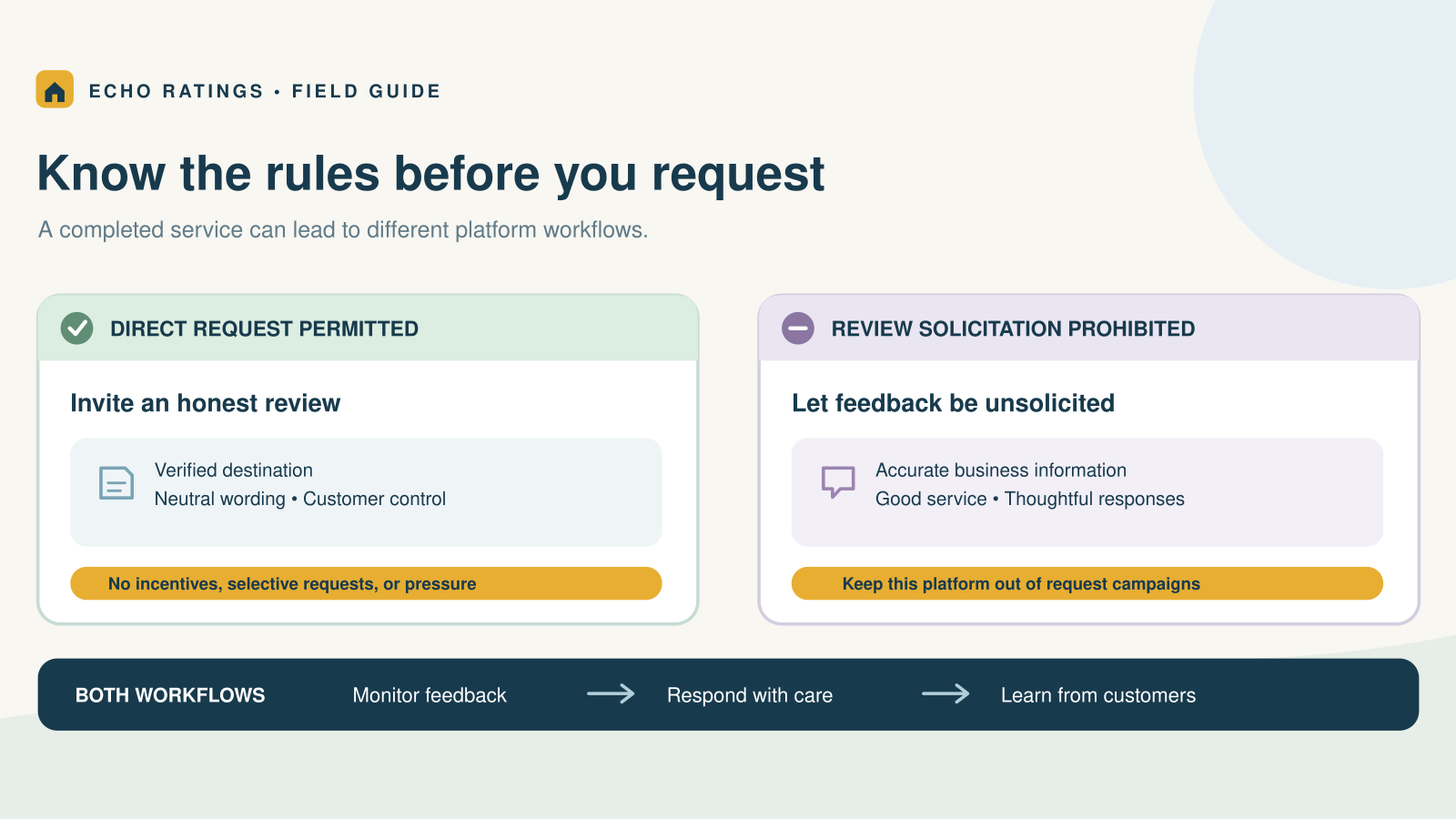
Google’s content policy prohibits fake engagement, review incentives, selective positive solicitation, pressure to review on the premises, and requests for specific review content. Check the actual messages and staff instructions, not only the written policy. A neutral template can still become a problem if a technician sends it only to customers who praised the work.
Correct any improper practice you find. Do not coach a customer to disguise wording, change accounts, or repeatedly repost to evade moderation. The review-gating guide helps your team keep private service feedback separate from eligibility for a public review invitation.
Keep completed jobs and disputed reviews separate
For a missed appointment, damaged item, or unresolved repair, assign a service owner and investigate the work. Continue the customer-care process while the review issue is being checked. A refund, warranty visit, or remedy should not depend on the customer posting, removing, or changing public feedback.
Build a useful evidence packet for support
Google’s missing-review help page links to Business Profile support, including for missing reviews after reinstatement. Use the account that manages the correct profile and select the issue that best matches what happened. Available forms and contact options can change, so follow the current prompts rather than relying on a fixed menu sequence.
Prepare a short, factual record before you submit:
- Business name, exact profile URL, and the affected branch
- Affected reviewer names or review links, if available
- Approximate submission date and the last date the review was visible
- Dated screenshots or notifications showing the observed change
- Dates of any merge, suspension, reinstatement, or other relevant profile event
- The checks already completed and any existing case number
Collect only what you need. A screenshot may contain a home address, phone number, or other customer information outside the review itself. Redact unrelated private details before sharing evidence, and do not post job invoices or access codes in a public help forum.
Use a concise issue description
Example support summary: “We manage [business name and profile URL]. On [date], we observed [specific missing review or count change]. The attached evidence shows [what it establishes]. The profile was [merged or reinstated, if applicable] on [date]. We checked the exact profile in Search and Maps and confirmed the request link points to this branch. Please advise on the appropriate review check.”
Replace the placeholders with verified facts. Leave out any claim that all affected reviews must be legitimate unless you have evidence for it. A screenshot can show what was visible at a particular time; it cannot establish compliance with every Google policy.
Choose the right support or appeal route
A missing positive review, a profile restriction, and a rejected request to remove a negative review are separate issues. Google’s appeal guidance explains the routes for profile restrictions and content decisions. The review-removal appeal discussed there concerns a review you reported that Google decided to keep; it is not a universal recovery tool for every missing contribution.
If an email identifies a fake-engagement restriction, use the appeal route in that notice or the restriction guidance. If reviews disappeared following reinstatement, describe that event to support. Keep your evidence and case notes together, respond to requested information, and avoid starting multiple parallel cases simply because the first answer is not immediate.
For policy-violating reviews that are still visible, use the reporting process instead. The negative-review response guide covers that separate workflow.
Respond to the customer without creating another problem
A customer who took time to write a review deserves a clear thank-you, not an assignment to fix your review count. Keep any troubleshooting request optional and limited.
Customer message example: “Thank you for sharing your experience with our team. We have not been able to locate the review on our business profile yet. If you are comfortable sharing the review link or a screenshot from your Maps contributions, it may help us check the issue. There is no need to write it again while we investigate.”
Do not ask for a different star rating, prescribed service keywords, or a review from another account. Do not repeatedly send the original request because your software has not detected the contribution. Mark the customer as already contacted and give the issue an owner. The review automation guide explains duplicate suppression and stop conditions.
Prevent routing and tracking mistakes
Missing-review troubleshooting is easier when the original request has a reliable record. Keep a verified profile URL for each legitimate location and record the link used for each send. Google provides official review-link and QR-code instructions; the Echo Ratings link guide adds practical testing steps.
Track the completed job, customer, branch, send time, delivery status, opt-out, and last invitation. Separate “message delivered,” “link clicked,” “customer says submitted,” and “review found” in your records. Each describes a different event. A click is not proof of a published review, and the absence of a detected review is not permission to keep messaging.
When comparing tools, ask what they can reliably observe and what requires a manual check. Use the contractor software evaluation guide to assess routing, monitoring, permissions, and reporting. Google controls publication and moderation of Google reviews.
Frequently asked questions
Does a missing review prove Google penalized my business?
No. Check the specific symptom and any notice. Do not infer a restriction from a count change alone.
Should I ask the customer to repost immediately?
Start with their existing contribution and the correct profile. Avoid duplicate requests or repeated reposting intended to bypass moderation. Let the reviewer control their own content.
Can Echo Ratings or an agency restore a review?
They can help organize monitoring and the evidence for a support request. They cannot promise that Google will publish or restore a particular review.
Should I create a replacement Business Profile?
Do not create a new profile as a troubleshooting shortcut. Google’s appeal guidance says not to create another profile for the same business while an appeal is under review. Resolve the issue through the appropriate existing profile and support route.
Keep a calm, documented review workflow
Verify the profile, record what changed, check the relevant notice, and use the correct support route. Explore Echo Ratings to organize review requests, monitoring, and responses. Compare pricing, run a free reputation audit, start a trial, or talk with the team.
This article provides general operational information, not legal advice. Check current platform, privacy, and messaging requirements for your business.