
Why automate review requests after a service call?
A completed service call is one of the best moments to ask for feedback. The work is fresh in the customer’s mind, the result is visible, and your team has a reliable operational event that can start the follow-up. The problem is that manual requests are easy to forget during a busy day.
Automation solves the consistency problem. When a technician closes a job, an invoice is paid, or a final walkthrough is approved, the system can prepare the right message for the right customer without relying on someone to remember. A well-designed workflow still leaves room for human judgment when a repair, refund, or complaint is unresolved.
This guide focuses on the mechanics of that workflow: selecting a dependable trigger, checking eligibility, sending a neutral request, stopping reminders when appropriate, and measuring the process. For the broader strategy, read our guide to getting more Google reviews for a home-service business.
Automation should standardize a fair process
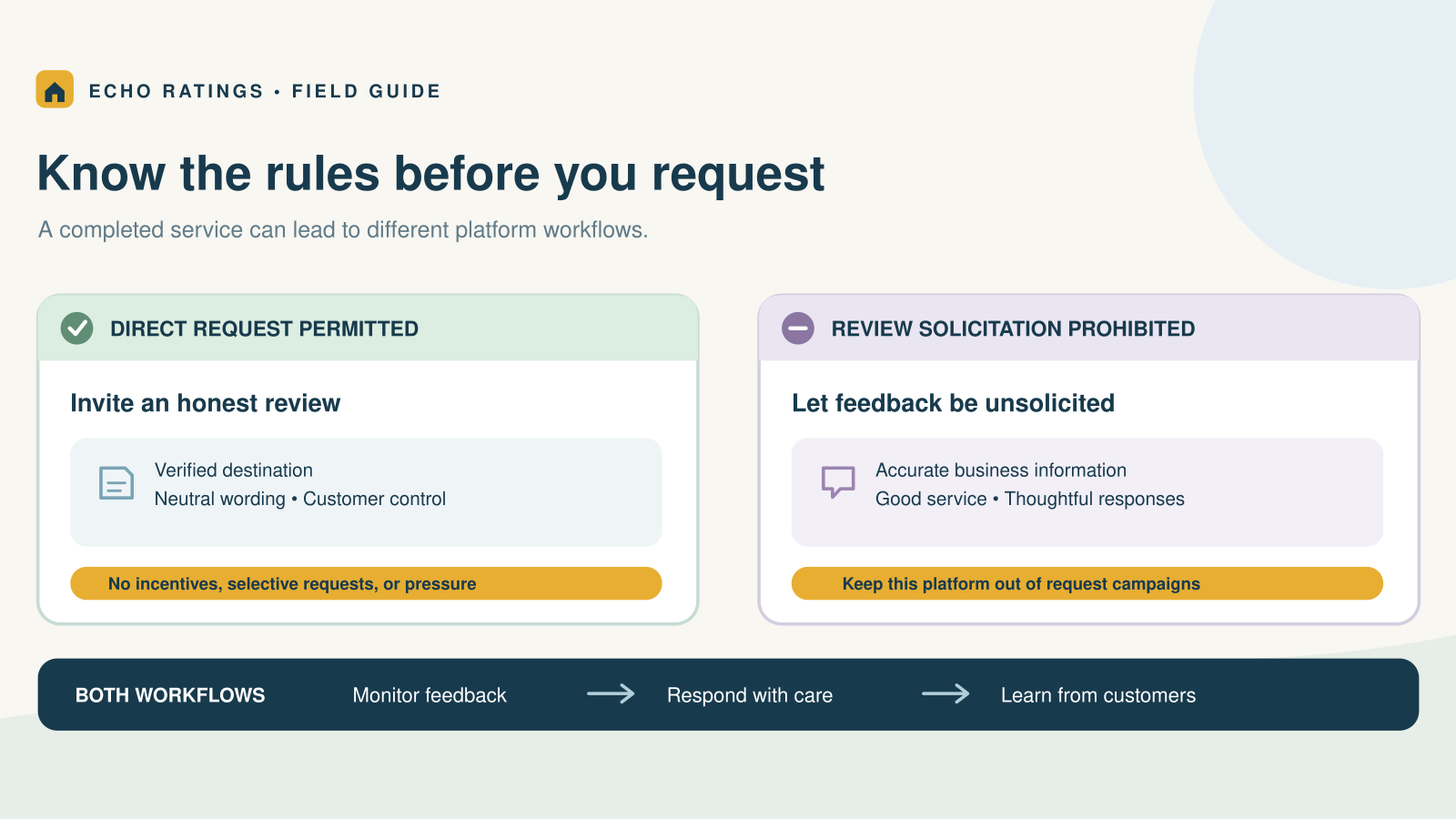
The goal is not to manufacture a perfect rating. It is to give genuine customers a simple, consistent opportunity to share an honest experience. Google’s policy allows merchants to encourage reviews based on genuine experiences, provided they do not offer incentives or try to influence the rating or content.
That means the workflow should be based on an objective event—such as legitimate completed service—not on whether a technician thinks the customer will leave five stars. The same eligibility rule should apply to satisfied and dissatisfied customers.
Start with a trustworthy completed-job trigger
Every automation needs one event that clearly means the service is ready for review. The best trigger depends on how the business operates.
- HVAC, plumbing, and electrical repairs: Job marked complete after the system or repair has been tested.
- Cleaning and landscaping: Service completed after the customer has had an opportunity to see the finished work.
- Roofing and remodeling: Final walkthrough approved and agreed punch-list work finished.
- Emergency services: Immediate problem resolved; do not send while the customer is still dealing with an urgent situation.
- Recurring services: A meaningful milestone, such as the third visit or end of a service period, instead of every appointment.
Avoid triggers that fire too early. “Technician dispatched,” “estimate sent,” and “invoice created” do not necessarily mean the customer has experienced the completed result. If your software supports multiple statuses, document exactly which status starts the request.
Use one system as the source of truth
Duplicate requests often happen when the field-service platform, CRM, and invoicing system each treat the job as complete. Choose one source of truth. It might be the job status in your field-service software or the paid-invoice event in your billing system. Other tools can receive the event, but only one should initiate the review workflow.
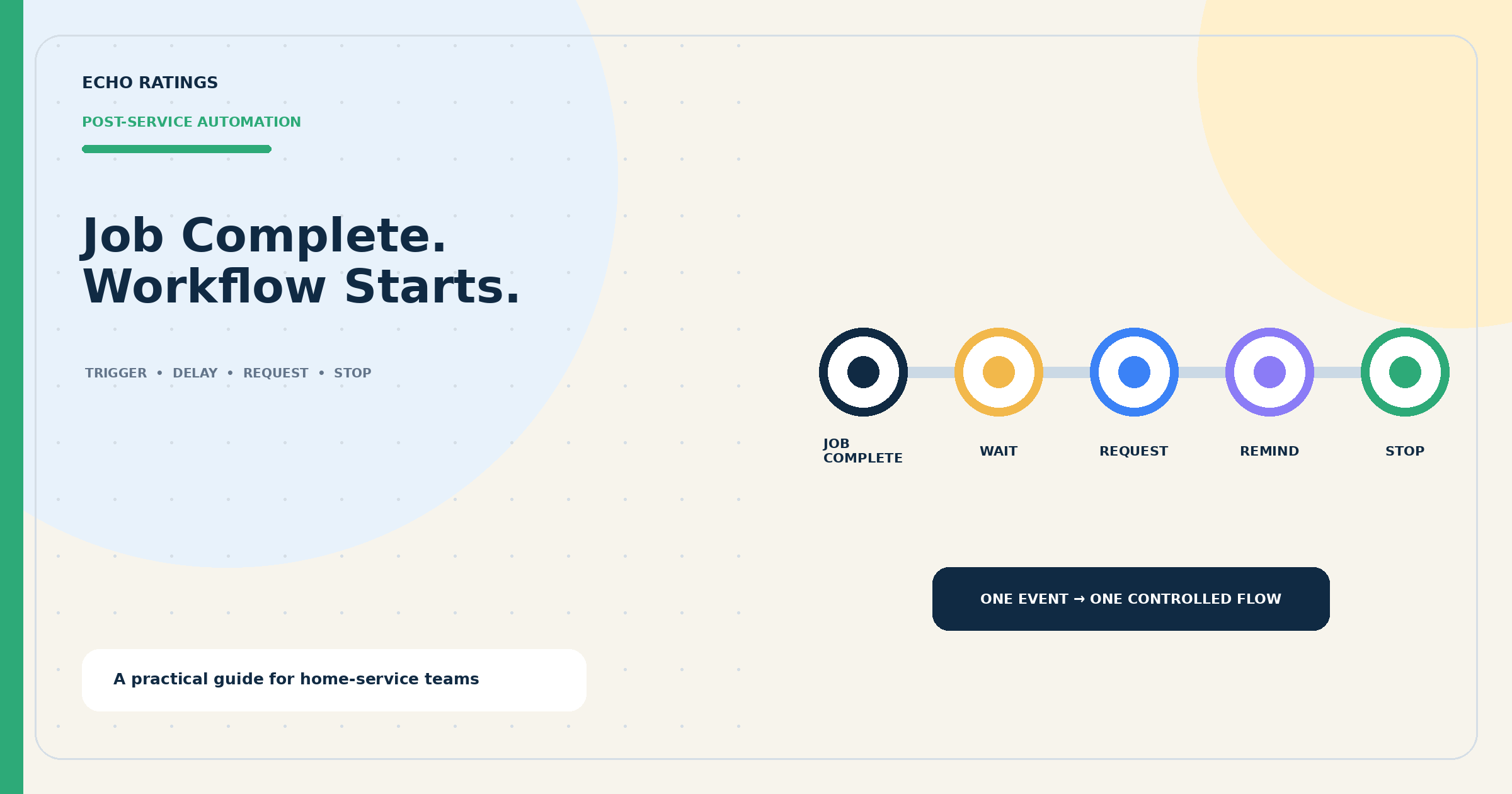
A seven-step automated review request workflow
1. Capture the minimum customer data
The workflow normally needs a first name, mobile number or email address, business location, general service type, completion time, and customer record ID. Avoid placing sensitive service details in the message. The customer record ID helps prevent duplicate sends without appearing in customer-facing copy.
2. Run an eligibility check
Before sending, confirm that the job is genuinely complete, the contact information is valid, the customer is not already opted out, and a request has not recently been sent for the same job or recurring-service period. Use neutral eligibility criteria; do not filter based on predicted satisfaction.
A practical suppression list can include canceled appointments, estimates that never became jobs, internal test records, duplicate contacts, customers who opted out, and jobs still awaiting corrective work. A complaint can pause operational messaging while your team resolves the issue, but do not create a system that permanently gives only happy customers access to the public review link.
3. Route the customer to the correct review page
Use the direct review link for the service location instead of sending customers to your homepage or asking them to search for the business. Google provides an official process to create a review link or QR code from a Business Profile.
For a multi-location company, store the location ID and review link together. The automation should select the link associated with the job’s actual location or service area. Test every destination on both mobile and desktop before activating the workflow.
4. Add a short delay after completion
Immediate is not always better. For a routine repair, a delay of one to three hours gives the customer time to confirm the result. For a final project walkthrough, the request can follow later that day. For an overnight emergency call, wait until an appropriate daytime hour.
Use quiet hours so messages do not arrive early in the morning or late at night. Account for the customer’s local time zone when the business serves multiple regions.
5. Send a neutral, recognizable message
The request should identify the business, reference the completed service in general terms, invite honest feedback, and include one direct link. Do not ask for five stars or a positive review.
Hi [First name], thank you for choosing [Business name] for your recent service. Would you be willing to share an honest review of your experience? [Google review link] Reply STOP to opt out.
Keep personalization accurate. A simple message with the correct business name is better than a heavily personalized message containing the wrong technician, service, or location.
If you need ready-to-use copy for each step, use our Google review request templates for home-service businesses and adapt only the fields your system can populate accurately.
6. Stop the workflow when the customer acts
Stop future reminders when the customer opts out, replies, completes the tracked action your system can reliably detect, or a team member suppresses the sequence. If the platform cannot confirm that a review was posted, avoid claiming that it can. Link clicks are useful signals, but a click does not prove that a review was submitted.
7. Use one or two respectful reminders
If there is no response, a first reminder after two or three days is a reasonable starting point. A final reminder about one week after the first request may be appropriate. More touches can increase fatigue and opt-outs. Let delivery, complaint, and response data determine whether the second reminder is worthwhile.
Compliance safeguards to build into the automation
Review requests touch platform policy, advertising rules, text-message requirements, email requirements, privacy obligations, and state law. The safest workflow treats compliance as part of the system design—not as wording added at the end.
Ask for genuine, unbiased feedback
Google’s Maps user-generated content policy says reviews should reflect genuine experiences. It prohibits paid reviews, incentives, discouraging negative reviews, and selectively soliciting only positive reviews. Google also warns against pressuring customers for a particular rating or specific content.
Configure the automation around completed service rather than predicted sentiment. Do not offer discounts, gift cards, free services, contest entries, or other benefits in exchange for a Google review. Avoid employee incentives tied to obtaining a certain number of reviews or particular review content.
Do not build review gating
Review gating occurs when a business asks customers to rate their experience privately, sends happy customers to Google, and routes unhappy customers somewhere else. A private support option can exist, but it should not be used to decide who receives a fair opportunity to leave a public review.
The FTC’s guidance for marketers advises businesses not to ask only customers they expect to leave positive reviews. It also cautions that a company may be responsible for deceptive tactics used by a reputation-management provider acting on its behalf.
Respect text-message consent and opt-outs
Automated texts may be subject to federal and state requirements depending on the technology, purpose, consent, and relationship with the recipient. The FCC states that consumers can revoke consent to robocalls or robotexts at any time through reasonable means. Review the FCC’s current robocall and robotext guidance, obtain appropriate consent for your program, recognize reasonable opt-out language, and stop applicable messages promptly.
Include clear opt-out language where required and make sure replies such as STOP are processed automatically. Do not continue a reminder sequence after an opt-out. Keep records showing when consent was collected, what the customer agreed to, and when any revocation was received.
Handle email appropriately
Whether an email is commercial or transactional depends on its content and primary purpose. If CAN-SPAM applies, the FTC explains requirements including accurate headers and subject lines, a valid postal address, a clear opt-out method, and prompt handling of opt-out requests. Review the FTC’s CAN-SPAM compliance guide and have counsel evaluate your specific messages.
Protect customer data
Limit the data passed into the request tool, use role-based access, and avoid including private job details in messages or review prompts. Document which systems exchange customer information, how long records are retained, and which vendors process the messages.
This article provides general information and is not legal advice. Platform policies and applicable federal, state, and local laws can change. Obtain advice for your specific workflow and jurisdictions.
What to measure after the workflow goes live
Measure the process without turning star ratings into an employee pressure system. Start with a baseline and track operational health by location, channel, and job type.
- Eligible completed jobs: Jobs that met the objective request criteria.
- Requests attempted and delivered: Shows whether customer data and messaging systems are working.
- Delivery-failure rate: Reveals invalid numbers, blocked messages, and integration issues.
- Link-click rate: Indicates interest, but does not prove a review was published.
- New review volume: Compare trends over time without assigning employees review quotas.
- Opt-out and complaint rate: A rising rate can signal poor timing, excessive reminders, or unclear consent.
- Time from completion to request: Helps identify delays or jobs stuck in the wrong status.
- Duplicate-request rate: Should be monitored closely when several systems share completion data.
Review the workflow weekly at first
During the first month, inspect failed sends, duplicate events, wrong-location links, late-night deliveries, opt-outs, and jobs that triggered before corrective work was complete. Sample actual messages to confirm that merge fields are accurate and the tone still sounds human.
A practical 30-day rollout plan
- Week 1: Map the job lifecycle, choose the source-of-truth completion event, document eligibility rules, and verify consent handling.
- Week 2: Build the automation in test mode. Use internal records to confirm location routing, message timing, suppression rules, and opt-out behavior.
- Week 3: Launch to a limited group of eligible jobs or one location. Monitor every send and correct integration issues quickly.
- Week 4: Compare delivery, clicks, reviews, opt-outs, and complaints. Adjust timing or reminders, then expand only after the workflow is stable.
Frequently asked questions
When should the first automated review request be sent?
After the work is genuinely complete and the customer has had time to experience the result. For many routine service calls, one to three hours is a useful starting point; longer projects may call for a request after the final walkthrough.
Should an unpaid invoice block the request?
That depends on your workflow. Some companies use invoice payment as the completion event, while others ask after service completion even when payment terms extend beyond the visit. Choose one documented rule and apply it consistently.
Can the workflow pause when a customer complains?
A temporary operational pause can prevent an insensitive message while the issue is actively being resolved. However, do not use complaint data to create permanent review gating or to offer the public review link only to customers expected to be positive.
Can automation tell whether a customer posted a Google review?
Not always. A tracked link can show that it was clicked, but that does not prove a review was submitted. Use only signals your integration can reliably confirm, and avoid repeatedly messaging customers whose activity is uncertain.
How many reminders should a home-service company send?
Begin with one initial request and one reminder. Add a second and final reminder only if response, opt-out, and complaint data support it.
Make review follow-up part of the completed-job workflow
A strong automation is simple: confirm the job is complete, check eligibility, select the correct review link, send a neutral request at a respectful time, honor opt-outs, stop unnecessary reminders, and measure what actually happened.
Echo Ratings helps home-service businesses make that process consistent while keeping owners and managers in control. Explore the Echo Ratings review-management platform, compare pricing, start a free trial, or book a demo.