
A direct review path removes unnecessary friction
A customer may be willing to review a completed service call and still abandon the process if they have to search for your company, choose among similar listings, or figure out where to write the review. A direct Google review link or QR code takes them to the correct place in fewer steps.
For a home-service company, that small improvement matters because the best request moment is brief. The technician has finished, the homeowner understands the work, and the office is closing the job. Your link should make sharing honest feedback easy without pressuring the customer or steering the sentiment.
This guide shows how to create the official Google link and QR code, test each destination, choose practical placements, route multiple locations correctly, and add safeguards around your requests. If you are building the broader process first, start with our guide to getting more Google reviews for a home-service business.
How to create your Google review link and QR code
Google provides both assets from the Business Profile itself. According to Google’s current review-link and QR-code instructions, the QR code is generated from a computer browser rather than a mobile device.
- Sign in to the Google account that manages the correct Business Profile.
- Open the profile in Google Search or Maps.
- Select Read reviews, then Get more reviews.
- Copy the review link for digital messages.
- On a computer, save the displayed QR-code image for printed materials.
The labels in Google’s interface can change, so use the linked help article if the menu looks different. Do not substitute a normal Maps listing URL when Google’s direct review link is available; the direct link gives customers a clearer path.
Label every file and link before your team uses it
Save the QR file with a name that identifies its destination, such as north-branch-google-review-qr.png. Store the matching direct link in the same controlled document or system record. For each location, record:
- Public business name
- Street address or service-area identifier
- Google Business Profile owner or manager
- Direct review link
- QR-code filename
- Date last tested
This prevents a dispatcher, technician, or print vendor from using the wrong code. It also gives your team a simple inventory when locations change or a Business Profile is updated.

Test the complete customer journey before sharing it
A link that works for the person who created it may still send a customer to the wrong listing, open an unexpected login screen, or fail after being shortened or copied into another system. Test the actual experience, not just the URL text.
- Open the direct link in a private browser window while signed out of the profile-management account.
- Confirm the correct business name, location, and review prompt appear.
- Test on both a common iPhone and Android device when available.
- Scan the printed QR code from normal viewing distance under ordinary indoor light.
- Test the QR code after it is placed in the final design, not only as the original image.
- Confirm that a customer can still identify the business before submitting anything.
Customers need a Google Account to post a review, but Google notes that the account can be created with a non-Gmail address. Avoid promising that every customer will be able to submit without signing in.
Use a QR code that survives printing and real jobsites
A QR code can scan perfectly on a laptop and fail on a glossy invoice, a tiny sticker, or a card left in a dim mechanical room. Keep a clear border around the code, use strong contrast, and avoid placing it over a photograph or textured background. Do not stretch, crop, recolor, or decorate the code in ways that interfere with its pattern.
Print a short, human-readable fallback such as your company’s review landing page beneath the code. The fallback helps customers who cannot scan and gives staff a way to verify which destination the piece should use. If that short URL redirects, keep the redirect under your control and check it regularly.
Before ordering a large print run, produce a physical proof. Scan it with several phones from the distance a customer would naturally use. Test any laminated, folded, or magnet-mounted version separately. A design that looks polished but does not open reliably creates frustration at exactly the wrong moment.
Choose placements based on customer context
Google suggests sharing the review link or QR code on receipts, in thank-you emails, at the end of chat interactions, and on in-store displays. Home-service companies can adapt those placements to a service-call workflow:
- Post-job text or email: Use the direct link because the customer is already on a device.
- Digital receipt: Add a brief neutral invitation with the direct link.
- Printed invoice or leave-behind card: Use the QR code plus a fallback URL.
- Service folder or maintenance packet: Place the code near the completion summary, not inside urgent warranty instructions.
- Office counter or showroom: Display the code where real customers can scan it voluntarily.
Do not rely on a QR code shown on the same phone the customer would need to scan. For digital communications, a tap-friendly link is the better option.
Match the link to the right location
A multi-location company should not send every customer to one default profile. Reviews should represent the location that actually provided the service. Build a simple routing table based on the branch, service territory, or dispatch record, then connect each route to its own tested link.
Do not ask technicians to choose from a long list after every call. Use the job’s assigned location as the source of truth and send uncertain records to a manual review queue. Audit a sample monthly to confirm that customers in each territory reach the intended Business Profile.
Pair the link with a neutral request
The link removes friction; the message supplies context. Identify the business, connect the request to the completed service, and ask for an honest experience. Avoid language that asks for a particular rating or suggests that public reviews are only for happy customers.
Text example: Hi [First Name], thanks for choosing [Company] for your recent service. If you have a moment, would you share your honest experience on Google? [Review Link] Reply STOP to opt out.
Email example: Thank you for trusting [Company] with your recent service. Your feedback helps our team understand what went well and where we can improve. You can share an honest Google review here: [Review Link].
For more variations by channel and job type, use our Google review request templates for home-service businesses. Keep the wording and eligibility rules consistent even when different teams customize the greeting.
Make the link part of a completed-job workflow
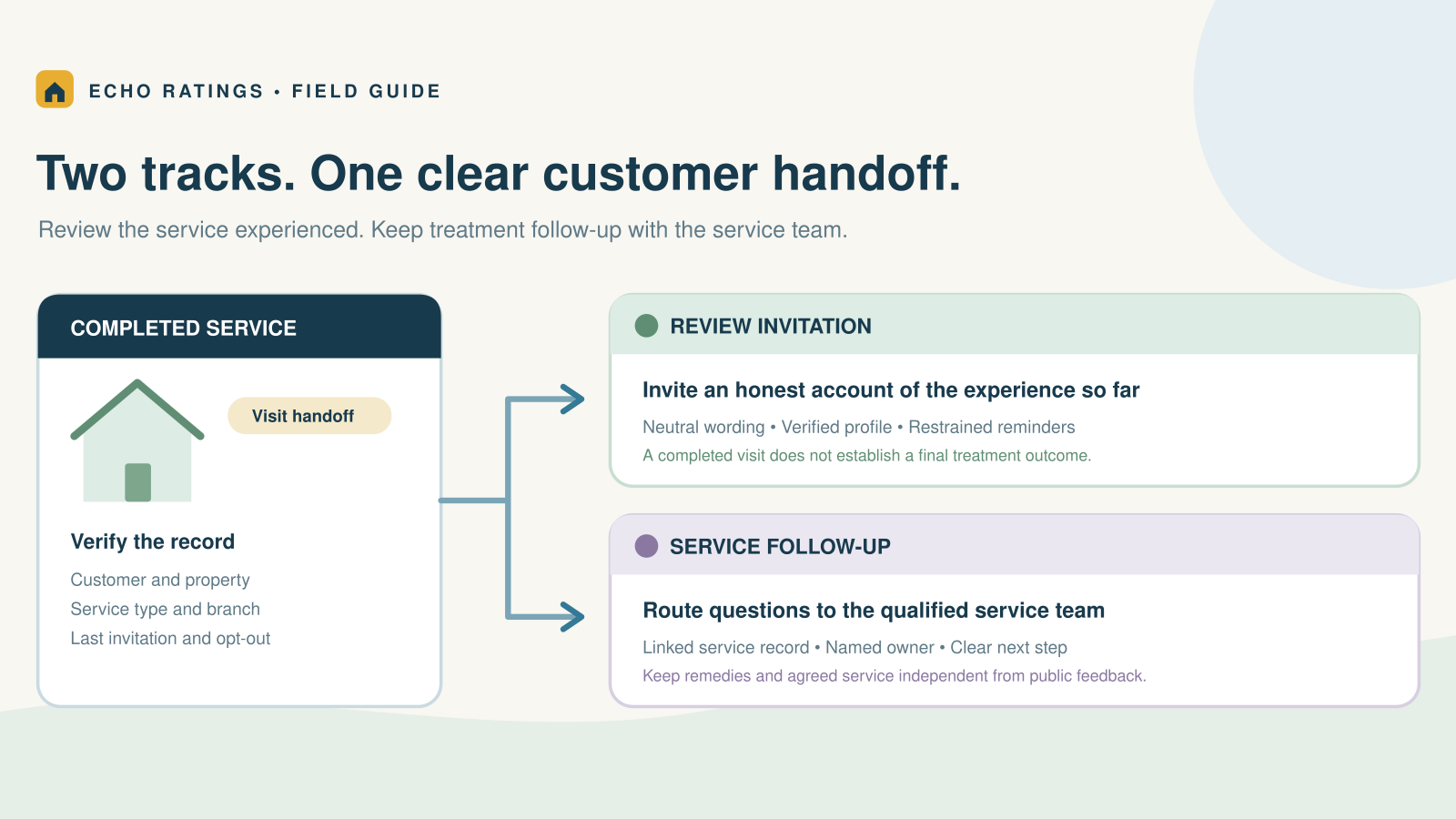
A review link is most useful when it is connected to a dependable trigger. Define the event that means the service is genuinely complete: the technician has finished the promised work, explained the result, and closed the job. Multi-visit projects should wait for the final handoff. Reopened repairs and unresolved callbacks should pause the sequence until the service episode is complete.
Send the request after that objective event, not after a private satisfaction score. One restrained reminder may be appropriate when there is no response, but stop after an opt-out, delivery failure, complaint about the messaging, reopened job, or confirmed review. Our guide to automating Google review requests after a service call covers triggers, delays, reminders, and suppression rules in more depth.
Track the pathway without monitoring sentiment
You can measure whether the process works without using a customer’s predicted happiness to decide who gets the public link. Track operational measures such as eligible completed jobs, requests delivered, link clicks where your tools support them, QR scans, opt-outs, and new review volume by location.
If you use a branded redirect or QR analytics service, make sure the destination is stable, the redirect loads quickly, and the data collection fits your privacy disclosures and applicable requirements. Never place customer details in a public query string. Test the final destination after every tracking change.
Echo Ratings helps local teams organize review requests, follow-up, monitoring, and responses in one workflow. Explore the Echo Ratings product and compare plans when you are ready to move beyond manually maintained links.
Follow Google and FTC review safeguards
Google says reviews and other Maps contributions should reflect genuine experiences. Its policies prohibit fake engagement, incentives such as discounts or free services in exchange for reviews, and selectively soliciting positive feedback while discouraging negative reviews. Review the current Google Maps user-contributed content policy before training staff or vendors.
Google also recommends valuing honest, balanced reviews and responding to feedback. Its tips for getting more reviews provide a useful official reference for owners and office managers.
The FTC advises businesses not to request reviews only from customers expected to respond positively and warns against fake reviews, undisclosed connections, deceptive incentives, and misuse of reporting tools. The agency’s review-solicitation guide and Consumer Reviews and Testimonials Rule Q&A explain the current federal framework.
Practical safeguards include:
- Ask every objectively eligible customer under the same rules.
- Request honest feedback rather than a particular star rating.
- Follow Google’s policy against compensated review activity.
- Do not screen customers by survey score before showing the public link.
- Do not write reviews for customers or tell them what to say.
- Keep staff, contractors, and vendors from posting undisclosed insider reviews.
- Honor messaging consent and opt-out requirements.
This article provides general operational information, not legal advice. Review messaging, consent, privacy, and disclosure requirements can vary by channel and jurisdiction.
A 15-minute monthly link audit
- Open each location’s direct link while signed out.
- Scan each active QR-code design from a printed sample.
- Confirm the business name and location are correct.
- Check digital templates for clear sender identification and a working opt-out.
- Review redirects, analytics tags, and fallback URLs.
- Remove outdated cards and replace files when a profile or destination changes.
- Record the test date and owner.
Repeat the audit after a rebrand, office move, merger, profile reinstatement, or messaging-platform change. A short recurring check is cheaper than discovering months later that customers were sent to the wrong place.
Frequently asked questions
Can I create the Google review QR code on a phone?
Google’s current instructions say the QR code can be generated on a computer browser, not a mobile device. The direct link can still be shared through digital channels.
Should every technician have a different QR code?
Usually no. Use a code tied to the correct business location rather than an individual employee. This reduces routing errors and makes updates easier to manage.
Can I put the QR code on a truck?
You can, but it is less contextual than a post-service message or leave-behind card. A driver behind the truck may not be a customer with a genuine service experience, so prioritize placements connected to completed work.
Should a QR code open a private survey first?
Not if the survey is used to decide whether the customer receives the public review option. That creates review-gating risk. A private feedback channel can exist, but it should not selectively hide the public link from eligible customers.
What happens if our Google Business Profile changes?
Retest the direct link and every QR code. Replace the stored source file and printed materials if the destination no longer matches the correct profile.
Make the next honest review easier to leave
The strongest setup is simple: one official link per location, one clearly labeled QR file, neutral messaging, reliable testing, and objective eligibility rules. The link should shorten the customer’s path—not influence what the customer says.
See how your current reputation compares with nearby businesses using the free Echo Ratings reputation audit. To build a consistent request and response workflow, start a 14-day trial or book a walkthrough.